/-/https/www.sciencebuddies.org/cdn/Files/21464/5/sb-logo.png)
/-/https/www.sciencebuddies.org/cdn/Files/21464/5/sb-logo.png)
Abstract
Lively, vivid colors can add pizzazz and turn a dull photo into a work of art. Learn how changing the saturation levels of the colors in your photo can really make it pop!Summary
Sara Agee, Ph.D., Science Buddies
/-/https/www.sciencebuddies.org/cdn/Files/2466/3/Photo_img022.jpg)
Objective
In this experiment you will investigate how changing the saturation levels of a digital photo change the color and quality of the printed image.
Introduction
One of the most important components of a photo is color. The most fabulous picture can be ruined by dull, drab, washed-out color. A boring picture can get a boost from lively, vivacious colors. What different properties do the colors of an image have? The basic color terms hue, saturation, and brightness are each used to describe color.
- Hue is what most of us think of when we think of "color." It is the generic name used to describe a color, e.g., red, green, yellow, orange, etc.
- Saturation is how pure the color is. A fully saturated color is the truest version of that color. Primary colors (red, yellow, and blue) are "true", so they are also fully saturated.
- Brightness is the amount of white there is in the color.
Whether we see an image as being lively or drab depends on color saturation. The more gray there is in a color, the less saturated it is. These colors will appear drab. The less gray in a color, the more saturated it is. These colors will appear lively.
Making a fun, bright image isn't as simple as turning the saturation levels all the way up. Too much saturation can ruin your photo. If one color is more saturated than others, it can dominate the image. On the other hand, if the colors aren't saturated enough, the image will be dull. To get the best photo, you need to strike a careful balance.
In this experiment you will investigate how changing the saturation levels of your photo will change the quality and appearance of the image. How much can you change the levels before your image loses quality? What do extreme changes do to your photo?
Terms and Concepts
To do this type of experiment you should know what the following terms mean. Have an adult help you search the internet, or take you to your local library to find out more!
- Hue
- Saturation
- Brightness
- How does changing the saturation change the quality of an image?
- How does changing the saturation change the colors of an image?
Bibliography
- Adobe Systems. (n.d.). Adobe Web Tech Curriculum - Lesson 5.2: Introduction to Color. Retrieved March 27, 2014.
- Wilson, T.V., Nice, K., and Gurevich, G. (2005). How Digital Cameras Work. HowStuffWorks, Inc. Retrieved April 24, 2006.
Materials and Equipment
- computer
- Adobe Photoshop or a similar image editing program. GIMP is a popular free alternative to Photoshop.
- your favorite photo
- color printer
- photo quality printing paper
Experimental Procedure
/-/https/www.sciencebuddies.org/cdn/Files/20483/6/icon-flask.png)
Note: This procedure is written for Adobe Photoshop. The menu layout in other image editing programs like GIMP, or in newer versions of Photoshop, may not match exactly with the steps below. If you are using a different program, you should still be able to follow this general procedure, but may need to consult the help menu for your image editing program (or search online for help).
- On your desktop, create a new folder called "My Photo Experiment" and place a copy of your favorite photo in the folder (like puppy.jpg).
- Open the photo in Adobe Photoshop.
- Click "Image" then "Adjustments" and then "Hue/Saturation" from the file menu.

- You will see a dialog box that has three slider controls, one each for Hue, Saturation and Lightness. Click and move one of the sliders, what happens to the image?
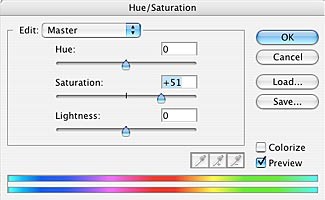
- Next you will make a series of different images with different saturation levels. Set the hue and lightness levels to zero for each image. Then set the saturation levels at the following values: -100, -50, 0, +50, and +100. If you want to collect more data, add more settings in between these values.
- After changing your first setting, click "OK" to apply the settings and close the dialog box.
- Click on "File" and "Save As" to save this picture as a new file in the folder on your desktop named "My Photo Experiment", naming each new file with a different name to keep track of your experiments (like puppy1, puppy2, puppy3, etc.). Keep all of the settings and file extensions the same. You can use a data table to help you keep track of your saturation settings and file names:
Swipe left to see moreFile Name Saturation Setting Description of result: puppy.jpg original file puppy1.jpg -100 puppy2.jpg -50 etc.
- Print the picture on photo quality paper and label the image by writing the saturation setting on the corner of the image.
- Close this image and re-open the original image from the desktop folder (puppy.jpg).
- Repeat steps 3-9 changing the saturation setting each time, until you have one picture for each setting you wish to test.
- Arrange your photos in a row and compare the images. How does saturation change the colors in the photo? Does it change the quality of the photo? When might adjusting this setting be useful?
/-/https/www.sciencebuddies.org/cdn/Files/2465/3/Photo_img021.jpg)
/-/https/www.sciencebuddies.org/cdn/Files/2466/3/Photo_img022.jpg)

Ask an Expert
Variations
- In this project, you changed the saturation levels. You can also try changing the hue and lightness levels. Do you get similar or different results?
- To kick this project up a notch, you can quantify the data by counting the number of unique colors in each image. Photoshop can not calculate the unique colors used in an image, so you will need to use another program like PaintShop Pro, which is a shareware program available for a free download. Open each of your files with PaintShop Pro and choose Colors/CountColorsUsed. After a while PaintShop Pro will show a dialog box that tells you the number of unique colors in the image, (like 16,777,216). When you increase or decrease the saturation, what happens to the total number of colors?
- Another interesting component of a digital image is the saturation and contrast of the image. To investigate these topics see the Science Buddies project ideas Color Profiles and Digital Photo Contrast for more ideas.
Careers
If you like this project, you might enjoy exploring these related careers:
/-/https/careerdiscovery.sciencebuddies.org/cdn/Files/1907/18/pexels-photo-3153207.jpg)

/-/https/careerdiscovery.sciencebuddies.org/cdn/Files/18382/4/film-editor.jpg)

/-/https/img.youtube.com/vi/r3oIc2NHeSY/0.jpg)
/-/https/img.youtube.com/vi/G7gvJEKh_p8/0.jpg)
/-/https/img.youtube.com/vi/l-VWX6ndGpA/0.jpg)