/-/https/www.sciencebuddies.org/Files/21464/5/sb-logo.png)
/-/https/www.sciencebuddies.org/Files/21464/5/sb-logo.png)
Design Your Own 3D Optical Illusions
Summary
/-/https/www.sciencebuddies.org/Files/21666/8/Headshot.Ben.Fino.jpg)
Thanks to Mark Veillette, PhD, for helpful contributions and Python code.
Illusion based on the work of Dr. Kokichi Sugihara.
/-/https/i.ytimg.com/vi/n--zawliqvA/maxresdefault.jpg)
/-/https/www.sciencebuddies.org/Files/20511/4/google-classroom.png)
/-/https/www.sciencebuddies.org/Files/20512/4/ms-teams.png)
/-/https/www.sciencebuddies.org/Files/20469/4/Canvas_Bug_Color_RGB.png)
/-/https/www.sciencebuddies.org/Files/20470/5/Schoology-Logo.png)
/-/https/www.sciencebuddies.org/Files/20471/4/lms.png)
/-/https/www.sciencebuddies.org/Files/20469/4/Canvas_Bug_Color_RGB.png)
/-/https/www.sciencebuddies.org/Files/20470/5/Schoology-Logo.png)
/-/https/www.sciencebuddies.org/Files/20471/4/lms.png)
/-/https/www.sciencebuddies.org/Files/18522/5/impossible-arrow-3d-printed-thumbnail.jpg)
The object looks like an arrow pointing to the right, but its reflection seems to show an arrow pointing to the left.
Overview
In this lesson your students will design their own 3D objects that exhibit "anomalous mirror symmetry"—that is, their reflections appear flipped left to right when you put them in front of a mirror.
Students will start by defining the outline of a 2D shape using functions. They will then use MATLAB or Python code to convert the 2D shape into a 3D curve that replicates the outline of the 2D shape when viewed from a certain angle. Finally, they will convert the 3D curve into a solid 3D object that can be viewed on a computer or 3D printed.
Working MATLAB and Python code is provided. Your students do not need to write the code from scratch.
Learning Objectives
- Use piecewise functions to define the outline of a two-dimensional shape
- Use a computer program to generate a three-dimensional optical illusion based on the two-dimensional shape
Common Core Alignment
CCSS.MATH.CONTENT.8.F.A.3:
Grade 8: Functions: Define, evaluate, and compare functions.
Interpret the equation y = mx + b as defining a linear function, whose graph is a straight line; give examples of functions that are not linear.
CCSS.MATH.CONTENT.HSF.IF.C.7:
High School: Functions: Interpreting Functions: Analyze functions using different representations.
Graph functions expressed symbolically and show key features of the graph, by hand in simple cases and using technology for more complicated cases.
Materials
Each student or group of students will need:
- A computer with one of these two programming options:
- MATLAB: A campus-wide license, individual student licenses, or a 30-day free trial.
- Google Colab, a programming environment that lets you run Python code in your web browser. Colab is free and you do not need to download anything, but students will need to save a copy of the notebook to their own Google Drive.
- A spreadsheet program like Microsoft Excel® or Google Sheets®
Optionally, the entire class will need:
- Access to a 3D printer
- A mirror
Background Information for Teachers
This section contains a quick review for teachers of the science and concepts covered in this lesson.The illusion in this lesson is based on the paper Anomalous Mirror Symmetry Generated by Optical Illusion by Dr. Kokichi Sugihara. You can read the paper for the complete details, but we will summarize it here.
The paper presents objects that appear flipped left to right when placed in front of a mirror. One such object is the "impossible arrow" (Figure 1). The shape only looks like an arrow when viewed from the correct angle. When viewed from the top or the side (Figure 2), it does not look like an arrow at all.
/-/https/www.sciencebuddies.org/Files/18523/5/impossible-arrow-3d-printed.jpg)
The object looks like an arrow pointing to the right, but its reflection seems to show an arrow pointing to the left.
Figure 1. The "impossible arrow" illusion. The arrow appears to point to the right, but its reflection in the mirror points to the left.
/-/https/www.sciencebuddies.org/Files/18524/5/impossible-arrow-top.jpg)
/-/https/www.sciencebuddies.org/Files/18525/5/impossible-arrow-side.jpg)
Figure 2. Top and side views of the "impossible arrow" reveal that it does not look like an arrow at all when viewed from these angles.
This illusion works because your brain assumes the top of the object is flat. However, as shown in the side view in Figure 2, the top and bottom surfaces of the arrow are not flat. The shape of these surfaces is carefully defined so it looks like the outline of a two-dimensional arrow only when viewed from a certain angle.
Dr. Sugihara's paper describes how you can start with the outline of a 2D shape in the x-y plane, defined by top and bottom parametric curves a1 and a2 (Figure 3). The curves are defined over the interval [-1,1] as functions of the parameter t. They can be defined by piecewise functions, but they must be continuous and meet at their endpoints on the x-axis, forming a closed curve. They are not required to be symmetrical about the x axis, although the arrow in Figure 3 is.
/-/https/www.sciencebuddies.org/Files/18526/5/2D-arrow.png)
Figure 3. A two-dimensional drawing of an arrow in the x-y plane, with top curve a1 and bottom curve a2.
The paper presents equations that convert these 2D curves into 3D curves that look like the 2D shape when viewed from an angle θ (Figure 4). The view angle is defined downward from a horizontal line that is parallel to the y-axis, so looking at the shape directly from the side would be a view angle of 0°, and looking at the shape from directly above would be a view angle of 90°.
/-/https/www.sciencebuddies.org/Files/18528/5/view-angle-definition.png)
A dashed line parallel to the y axis is offset in the positive z direction, with an angle theta defined downward from that line.
Figure 4. Definition of the view angle θ.
The equations to convert the the 2D curves a1 and a2 into 3D parametric curves c1 and c2 are:
Equation 1:
Equation 2:
where
Equation 3:
Note that since x = t for both c1 and c2, you can substitute x for t in the above equations if your students have not yet learned about parametric curves.
The resulting 3D curves c1 and c2 only look like the original 2D shape when viewed along the y-axis at a downward angle θ (Figure 5). When the shape is rotated 180°, its original orientation appears preserved (e.g., an arrow pointing to the right), resulting in the "anomalous mirror symmetry" illusion (Figure 6).
/-/https/www.sciencebuddies.org/Files/18529/6/3D-curve-theta.png)
All three views are aligned along the y axis but at three different downward view angles: 90 degrees, 45 degrees, and 0 degrees. The 2D arrow shape is only visible at the 45-degree view angle.
Figure 5. Views of the 3D curves c1 and c2 while changing the view angle θ.
/-/https/www.sciencebuddies.org/Files/18530/5/arrow-outline-3d-rotation.png)
Rotations about the z axis of 0 degrees, 45 degrees, 135 degrees, and 180 degrees. The 2D arrow is only visible in the 0 degree and 180 degree views. In both cases it looks like the arrow is pointing to the right.
Figure 6. Views of the 3D curves c1 and c2 with a constant view angle θ=45° while rotating the shape about the z-axis.
While this is sufficient to generate the illusion in a 3D graph, if you want to 3D print the shape, you need to generate an STL file (originally developed for a type of printing called stereolithography). An STL represents the surface of a solid object using triangles. So, for example, an STL file of a cube will consist of twelve triangles, two on each of the six faces of the cube (Figure 7).
/-/https/www.sciencebuddies.org/Files/18531/5/cubes-STL.png)
Figure 7. Left: A cube plotted in 3D space. Right: An STL representation of the same cube, with each face broken up into two triangles.
A triangularized representation of the 3D shape based on the curves c1 and c2 can be created first by offsetting the curves in the z direction (Figure 8), then filling in the sides, top, and bottom of the shape with triangles (Figure 9). This results in a solid 3D version of the illusion (as opposed to a wireframe version) that can be viewed in a 3D graph or exported as an STL for 3D printing or further editing in a CAD program.
/-/https/www.sciencebuddies.org/Files/18532/5/3D-curves-offset.png)
Figure 8. 3D curves offset in the z direction to create the top and bottom edges of the 3D shape.
/-/https/www.sciencebuddies.org/Files/18533/5/impossible-arrow-triangles.png)
Figure 9. 3D shape with the surface filled in with triangles.
In this lesson, your students will define their own 2D shapes using piecewise functions (linear, quadratic, polynomial, trigonometric, etc.—you can decide what is appropriate for your students). They will then enter their shapes into a working MATLAB or Python program that automatically generates the triangularized 3D version of the shape as shown in Figure 9, as well as the intermediate steps (as in Figures 5, 6, and 8). You can choose whether your students just view their shapes in the output MATLAB or Python plots (which can be rotated on the computer screen) or also 3D print them.
Additional Background Links
- Anomalous Mirror Symmetry Generated by Optical Illusion, Dr. Kokichi Sugihara
- Master of illusion: Kokichi Sugihara's 'impossible' objects, CNN
- The STL File Format Simply Explained, All3DP
Prep Work (10 minutes)
Try running either the MATLAB or Python code yourself to see how it works. Both programs use the arrow shape as the default, but you can load a different predefined shape or define your own.
- For MATLAB, download impossible_shape_generator.m, save it on your computer, and open it in the MATLAB editor. You can also download CSV files for the boat, fish, and car shapes from Dr. Sugihara's paper.
- For Python, make a copy of this Google Colab notebook to your Google Drive. Google Colab is an environment that lets you run Python code directly in a web browser. You do not need to download anything.
Run the code one section at a time using either the Run and Advance button in the Section part of the MATLAB menu or the Run Cell button (which looks like a Play button) in the top left of each section in Google Colab. Read the on-screen instructions for each section.
Optionally, you can 3D print one of the default shapes (see instructions in the program to select one) or one that you design yourself to show your students.
Teacher Tool Box
Engage (10 minutes)
There are several ways to introduce this lesson to your students:
- Run the MATLAB or Python code and show the output graphs on a projector. Rotate the graphs so students can see the illusion on the screen. (See Prep Work section.)
- 3D print your own "impossible arrow" (or another shape you design yourself) before you start the lesson so the students can see the illusion in person. (See Prep Work section.)
- Show this short video, which demonstrates the illusion but does not explain how it works.
- Show this longer video, which provides an overview of how the illusion works and what the students will be doing.
/-/https/i.ytimg.com/vi/PKnPN3IzILQ/maxresdefault.jpg)
Depending on how you introduce the lesson, have a brief discussion with your students. For example:
/-/https/www.sciencebuddies.org/Files/14174/23/note-question-mark-30.png) | What is the illusion that we are seeing? How does the illusion work? |
/-/https/www.sciencebuddies.org/Files/14175/24/conversation-bubbles-30.png) | The illusion is an arrow that always seems to point to the right, even when we spin it around. When we put the arrow in front of a mirror, its reflection appears to point to the left. The illusion works because your brain assumes the top of the arrow is flat, but in reality it has a complicated 3D shape. The illusion only works when we look at it from a specific angle. |
Explore (2 hours)
- Explain that your students will generate their own 3D illusions. They will start by designing the 2D shape that will be visible in the illusion.
To do this, they need to make a closed curve that defines the outline of the 2D shape. This closed curve is made from two separate curves in the x-y plane that are both functions of x: the top curve a1 and the bottom curve a2.
Figure 10 shows an example: the outline of an arrow that is defined by piecewise line segments. (Remember that the shape does not have to be symmetric about the x-axis). You can reproduce this drawing on a chalkboard. It is also available as part of the slideshow that includes other figures from this lesson.
Teacher Note: If you choose, you can introduce the curves as parametric functions of t instead of x (see Background section).
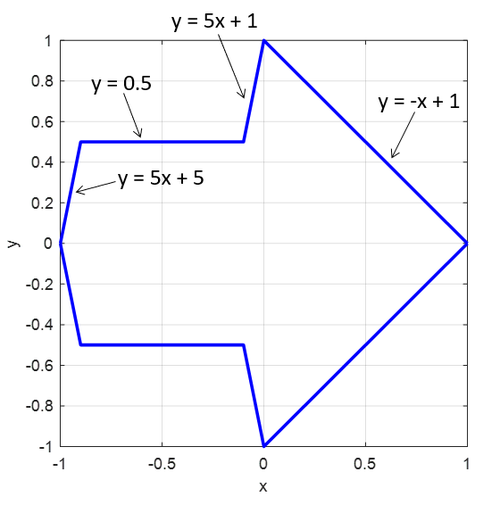
The equations for the different segments of the curve, from left to right, are: y=5x+5; y=0.5; y=5x+1; y=-x-1
Figure 10. Outline of a 2D arrow defined by piecewise line functions. Only the equations for the upper curve a1 are shown. - Have your students use the Student Worksheet to design their 2D shapes. You can decide whether they start by sketching the shape and then defining functions for each section of the curves, or write the functions first and then graph the shape.
Tell the students about the criteria for the curves (you can adjust the terminology as needed for your students):
- The shape must be made from upper and lower curves that are both functions of x (or parametric curves that are both functions of t and monotone in x).
- The two curves must meet at their endpoints on the x axis, (-1,0) and (1,0), forming a closed curve.
- The curves must be continuous. They do not need to be continuously differentiable.
- The curves do not need to be symmetric about the x- or y-axis.
Teacher note: Dr. Sugihara's paper plots the shapes on the interval [-1,1] on the x-axis, as shown in Figure 10. If you would like to avoid having your students work with decimals, you can expand the domain—for example, to [-10,10]. The MATLAB and Python code will still work, but you may need to scale down the STL file when 3D printing, depending on the units. (A shape that goes from -10 to 10, for example, would be 20 inches long if imported in inches and would not fit in most printers.)
- After designing their shapes on paper and writing the piecewise functions for a1 and a2, students should plot the shapes in a spreadsheet program (Figure 11) by entering the appropriate domain for x (e.g., [-1,1] or [-10,10]) and entering equations to calculate the y values of the a1 and a2 curves using their piecewise functions. Alternatively, if your students know how to make plots in MATLAB or Python, they can make the plots there instead.
Teacher Note: You can point out that the advantage of defining the shape using functions (instead of just plotting all the points manually) is that you can easily increase the resolution of the graph. If you plot the points by hand, then you must manually plot additional points if you want to increase the resolution. Functions can automatically calculate the y values of the new points for you if you put them in a spreadsheet.
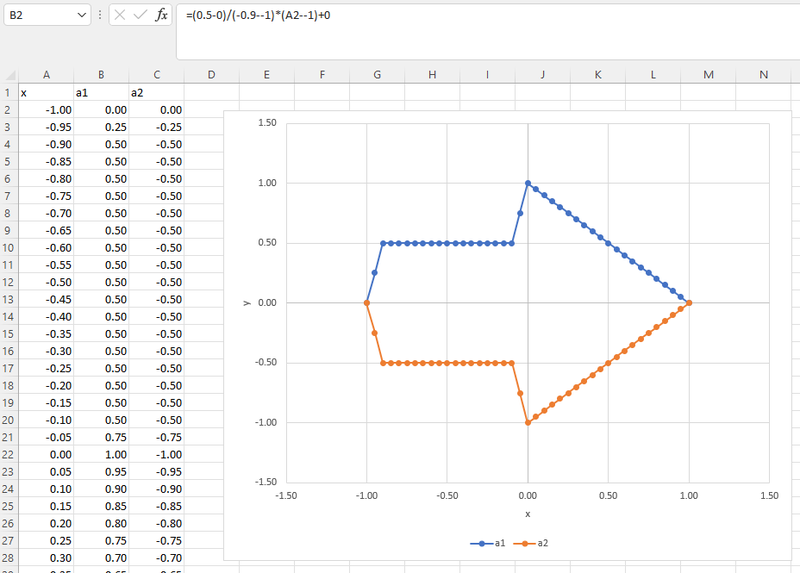
The y coordinates are defined by equations. On the right is a graph of the resulting arrow.
Figure 11. Screenshot of spreadsheet program with the curves a1 and a2 calculated using piecewise functions. - Have students export their spreadsheets as CSV files with three columns: the x coordinate, the y coordinate of a1, and the y coordinate of a2. Each column should have a header, with the data starting in the second row.
- Now have students run either the MATLAB code or the Python code and follow the on-screen instructions to load their CSV file. (Optionally, you can have the students run the program with the default arrow shape before loading their own CSV file.)
- For MATLAB, download impossible_shape_generator.m and open it in the MATLAB editor.
- For Python, make a copy of this Google Colab notebook to Google Drive. Google Colab is an environment that lets you run Python code directly in a web browser. You do not need to download anything.
- Have students run the code one section at a time, either using the Run and Advance button in the Section part of the MATLAB menu or the Run Cell button (which looks like a Play button) in the top left of each section in Google Colab.
Discuss the output of each step as a class.
Each program will output six figures. Figure 12 shows an example of the MATLAB output.
- Plot of the original 2D shape in the x-y plane.
- 3D plot of the curves c1 and c2.
- 3D plot of the original curves c1 and c2, and additional curves offset in the z direction, forming the edges of a 3D shape.
- 3D plot of all the vertices on the top and bottom edges of the 3D shape. These vertices will be connected with triangles to form the STL file.
- 3D plot of the surface triangles using Method 1. This method adds vertical triangles to form the side walls of the shape, then adds triangles connecting the opposite edges to form the top and bottom surfaces of the shape.
- 3D plot of the surface triangles using Method 2. This method adds vertical triangles to form the side walls (as in Method 1), but it connects triangles to a central point to form the top and bottom surfaces of the shape.
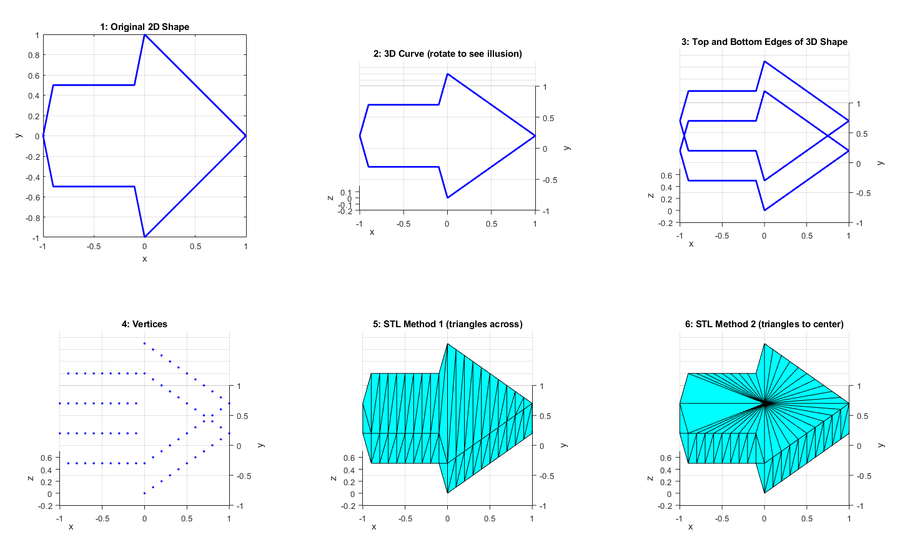
Figure 12. Example output of Figures 1–6 from the MATLAB program. - Have students rotate the views of the various 3D graphs and discuss what they see.
 What do you see when the graph is first plotted?
 Students should see the outline of their 2D shape.What do you see if you rotate the graph to view the shape from the top or from the side?The illusion of the 2D shape should disappear.What happens if you return to the original view angle, then spin the shape around the z axis a full 180°?You should see the original 2D shape again (e.g., an arrow that is still pointing to the right, even though you would expect it to now point to the left).
 - Give students a chance to update their 2D shapes and see how this changes the resulting illusion. They can do this by saving a CSV file with a new name (so they can keep track of their iterations) and re-running the program. Note that each time you run the program MATLAB will save new STL files in the same directory as the m-file. (It will automatically increment the file names to avoid overwriting previous files.) Your web browser will prompt you to save the STL files from the Python script.
- Optionally, your students can open their STL files in a computer aided design (CAD) program. Tinkercad is a good free option for a beginner-friendly CAD program.
- If your class has access to a 3D printer, have your students 3D print their shapes. They can choose between Method 1 and Method 2 for the triangularization, depending on which they think looks best, or print both if you have the resources.
- Try viewing the 3D printed shapes from different angles and spinning the shapes around. When do you see the illusion? What makes the illusion disappear?
- Try putting the 3D printed shapes in front of a mirror and spinning them. Do you see the "anomalous mirror symmetry" illusion? Does the illusion work better for some shapes than others?
/-/https/www.sciencebuddies.org/Files/18527/5/piecewise-functions.png)
/-/https/www.sciencebuddies.org/Files/18535/5/2d-arrow-excel.png)
/-/https/www.sciencebuddies.org/Files/18537/6/matlab-output-figure-illusion.png)
Reflect (15 minutes)
Have a "show and tell" session where students get a chance to see each other's shapes.
Assess
In addition to collecting your students' worksheets, you can ask them to submit their electronic files, including the CSV file, copies of the MATLAB or Python figures, and their STL file.
Make Career Connections
Discussing or reading about these careers can help students make important connections between the in-class lesson and STEM job opportunities in the real world.
/-/https/careerdiscovery.sciencebuddies.org/Files/1442/17/unsplash-TXxiFuQLBKQ.jpg)

/-/https/careerdiscovery.sciencebuddies.org/Files/1011/20/pexels-photo-7375.jpg)
Lesson Plan Variations
- Watch the video below about another one of Dr. Sugihara's illusions, the "ambiguous cylinder," which is based on the paper Topology-disturbing objects: a new class of 3D optical illusion. Can your students design their own shapes for this type of illusion?
/-/https/i.ytimg.com/vi/mn_-XdmyMuA/maxresdefault.jpg)
/-/https/img.youtube.com/vi/um5-Ts41nHI/0.jpg)
/-/https/img.youtube.com/vi/FKBPQSiSm8U/0.jpg)
/-/https/img.youtube.com/vi/6RA9x4wlnW8/0.jpg)