/-/https/www.sciencebuddies.org/Files/21464/5/sb-logo.png)
/-/https/www.sciencebuddies.org/Files/21464/5/sb-logo.png)
Abstract
Litter is not only an eyesore but also a serious threat to wildlife and the environment. While some littering is intentional, much of it occurs accidentally–such as when trash falls from garbage trucks or strong winds scatter waste from bins. Machine learning offers a powerful solution for detecting litter, paving the way for future innovations, including autonomous robots capable of cleaning up our surroundings.
Summary
None
Readily available
No issues
/-/https/i.ytimg.com/vi/W-5Z6S6Csjg/maxresdefault.jpg)
Objective
Collect images of various types of litter for a litter detection model and train a model to identify different types of litter.
Introduction
Litter is a major environmental issue, harming ecosystems, wildlife, and even human health. When waste is not disposed of properly, it pollutes natural spaces, clogs waterways, and contributes to microplastic contamination. Wildlife can ingest or become entangled in litter, disrupting habitats and threatening species. For humans, litter increases the spread of disease, exposes communities to toxic chemicals, and raises fire risks. Additionally, managing litter is costly, affecting property values and community well-being.
Litter comes from various sources, such as individuals improperly discarding trash, wind carrying waste from overflowing bins, or large-scale events and construction sites failing to manage waste effectively. Often, littering occurs because people do not consider its consequences, but simple actions like using trash cans and recycling can help maintain a cleaner environment.
What if we could teach a robot to recognize litter and dispose of it properly? The first step in achieving this is training a system to identify litter using computer vision.
/-/https/www.sciencebuddies.org/Files/21152/5/trash_success(2).png)
Artificial Intelligence (AI) is a branch of computer science focused on the creation of tools that can solve problems and analyze information. Machine learning is a subdivision of AI. Its goal is to create tools that can learn and improve over time using data. Computer vision is a subdivision of machine learning that enables computers to interpret and analyze visual data from the world, much like human vision. It involves techniques that allow machines to process images and videos, recognize patterns and make decisions based on what they “see.”
Computer vision has diverse applications, including facial recognition, self-driving cars, medical imaging, and industrial automation. In this project, we will leverage computer vision to collect and analyze image data of litter, training a model to recognize waste in various environments. This technology lays the groundwork for automated litter detection and cleanup solutions, contributing to a cleaner and healthier world.
Terms and Concepts
- Litter
- Computer vision
- Artificial Intelligence (AI)
- Machine learning
- Accuracy
- Precision
- Recall
Questions
- How does litter negatively impact ecosystems, wildlife, and human health?
- What are some common sources of litter?
- What role does computer vision play in identifying litter?
Bibliography
To learn more about litter and its environmental impact:
- EPA. (2023, February). Litter Management. Retrieved March 26, 2025.
To learn more about computer vision:
- CrashCourse. (2017, November). Computer Vision: Crash Course Computer Science #35. YouTube. Retrieved March 26, 2025.
Tools for labeling images:
- CVAT. (n.d.). CVAT.ai. Retrieved March 26, 2025.
- LabelMe. (n.d.). Labelme.io. Retrieved March 26, 2025.
- VIA. (n.d.). VGG Image Annotator (VIA). Retrieved March 26, 2025.
To learn about accuracy, precision, and recall and how to calculate them:
- Evidently AI. (2025, January). Accuracy vs. precision vs. recall in machine learning: what's the difference?. Retrieved March 26, 2025.
Materials and Equipment
- Computer with Internet access
- Phone or digital camera
- One can
- One piece of cardboard
- One plastic item
Experimental Procedure
/-/https/www.sciencebuddies.org/Files/20484/5/icon-gear.png)
Setting Up the Google Colab Environment
- You will need a Google account. If you do not have one, make one when prompted.
- Download the litter_detection.ipynb file from Science Buddies. This is the code you will need to process your data.
- Within your Google Drive, click on ‘MyDrive,’ then create a new folder and rename it “litter_detection.” Inside the folder, upload the litter_detection.ipynb folder.
- Double-click on the litter_detection.ipynb file. This should automatically open in Google Colab. You will do the following in the Google Colab environment:
- Change the Runtime type by clicking on ‘Runtime,’ then ‘Change runtime type.’ Next, click on the ‘T4 GPU’ option if it is not already selected and save.
- Read the Troubleshooting Tips and How to Use This Notebook sections in the notebook. Follow the instructions you find in that section.
- Run the block under Importing Libraries to ensure you have access to all the functions we will use for this project.
Collecting the Data
You have the flexibility to choose the type of data you collect. To begin, we will focus on three types of trash: cans, cardboard, and plastic. However, feel free to adjust the categories based on what you have in your trash or recycling bin, or what you find outdoors.
- Using a phone or any other camera, capture at least 100 images of each object. While multiple objects can appear in the same image, ensure that no two images are too similar. Specifically, you need to collect images of three distinct objects: one can, one piece of cardboard, and one plastic item.
For each object, you must take 100 images. This can be achieved in two ways: either by capturing 100 images that include all three objects together or by taking 100 images of each object individually.
To create a diverse dataset, vary the images in different ways, such as:- Changing camera angles by rotating around the object.
- Rotating the object itself.
- Using different backgrounds (e.g., gravel, grass, dirt).
- Stacking or nesting objects (e.g., placing a bottle inside a cardboard box).
- Experimenting with different lighting conditions (e.g., adjusting for sunlight direction, taking photos under a tree).
- Varying the zoom level to capture both close-up details and wider shots.
- These are just a few ideas–feel free to explore other variations to make your dataset more robust!
- Inside the
litter_detectionfolder is another folder calleddata, inside that isimages, and finally, within images, there is a folder namedtrain. Upload your images to the train folder. - For the test data, record a video of the objects. You can either pan across all of the objects or move them around while filming. You can try tossing or flipping the objects around, but remember that the model might not recognize the object while it is in your hand, so remember to set it down every time you move the object. The video should be in MP4 format. Once recorded, upload your videos to the
litter_detection/testfolder.
Labeling the Data
Note: The instructions for this part of the procedure are written for an external website. The interface for the website or the exact steps you need to take may change if the website is updated.
- Next, we will label our data using the Computer Vision Annotation Tool, CVAT.ai, a free online tool for annotating images and videos. You may use other tools such as LabelMe or VIA if you would like, but you will need to adapt your procedure since the steps below are written for CVAT.ai. Labeling means drawing boxes around objects in your images and assigning them a category, such as ‘can’ or ‘plastic.’ This step is crucial for training an AI model to recognize different types of trash. To get started, create an account by clicking ‘Sign In’ at the top right corner of the website.
- To start a new project, click on ‘Projects,’ then select the plus (+) icon, and choose ‘Create a new project.’
- Give your project a name, such as ‘litter_detection.’
- Click the ‘Add label’ button, enter a label name (e.g., can, cardboard, or plastic), and select ‘Continue.’ Repeat this process for each label you need.
- If you accidentally create an unwanted label, you can delete it by clicking ‘Cancel,’ then selecting the trash icon next to the label you want to remove.
- Once you have entered all your labels, click ‘Submit & Open.’
- Then, click the plus (+) icon and choose ‘Create a new task.’
- Give the task a name, like ‘litter_detection_annotation.’
- Upload your images here as well, then click ‘Submit & Open.’ This upload may take a while depending on the speed of your internet connection and the number and size of your image files. Wait for it to finish.
- You will see a job labeled ‘Job #_______.’ The blanks will be filled with numbers. Click on that job to proceed.
- To start labeling the images, press ‘n’ on your keyboard. You will see horizontal and vertical lines appear, which are just guidelines. Use these guidelines to draw a box around every piece of litter in the image. On the ‘Object’ tab on the right side of the screen, ensure that each rectangle you have drawn is assigned the correct label (e.g., can, cardboard, plastic, etc.).
- You can save your progress by clicking Ctrl + S. It is good practice to save frequently. To move to the next image, press 'f.' You can press 'd' to return to a previous image. You can also use the arrows at the top to navigate.
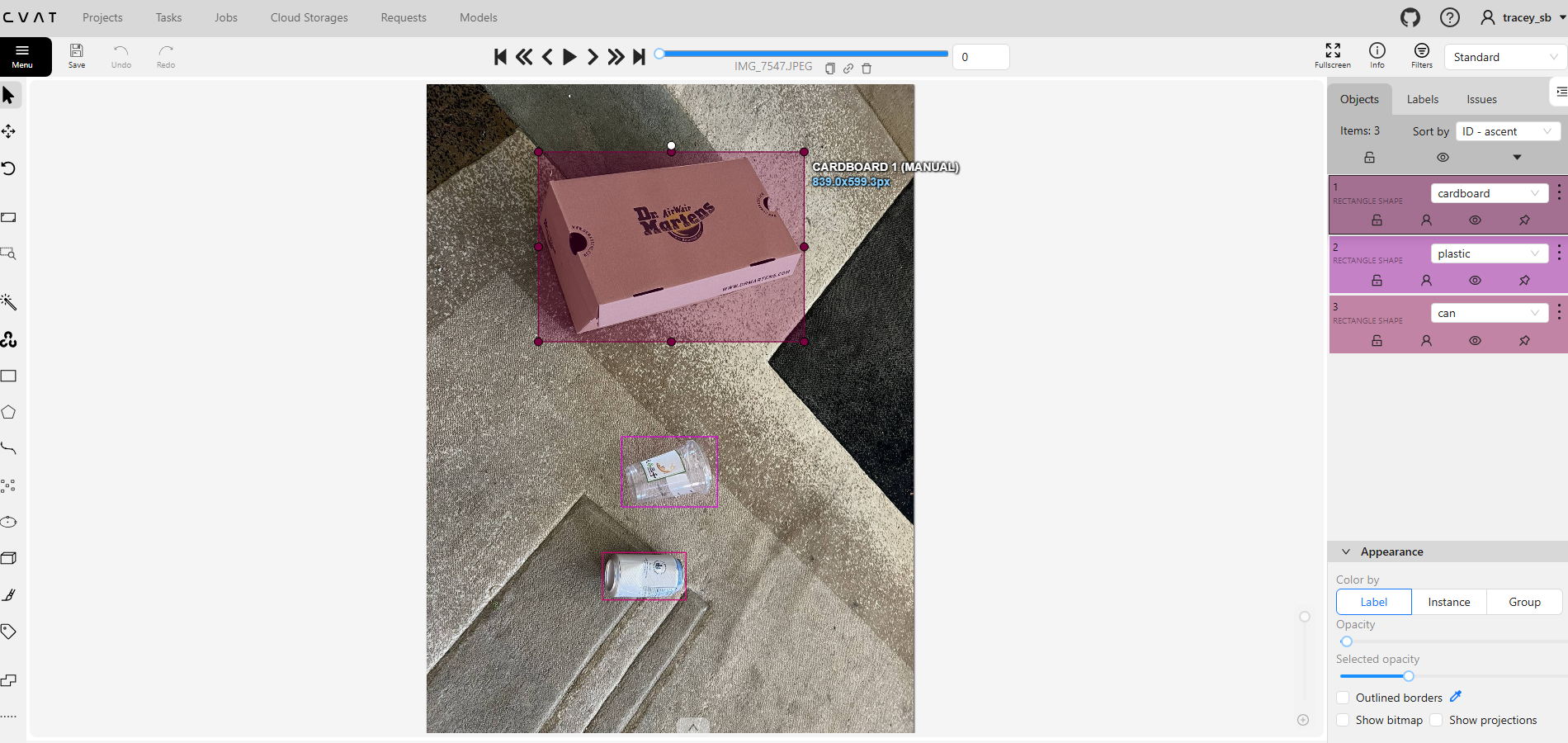
- Repeat steps 10-11 until all of the images have been labeled.
- Next, go to the ‘Tasks’ tab in your CVAT account. Find the task you just completed, click the three dots next to it, and select ‘Export Task Dataset.’ Choose ‘YOLO 1.1’ as the export format, then click ‘OK.’
- A pop-up will appear indicating that the export process has started, followed by another pop-up with a download link once it is finished.
- Note: If you miss the pop-up, you can find the download link under the ‘Requests’ tab.
- After downloading the annotations and unzipping the folder, navigate to the inside of the folder and you should see that there are .txt files for each image. Upload these files to the
litter_detection/data/labels/trainfolder on your Google Drive.
/-/https/www.sciencebuddies.org/Files/21172/5/Screenshot-2025-04-09-103937.png)
Preparing the YAML file
Now, we will prepare the YAML (a recursive acronym for ‘YAML Ain’t Markup Language’) file in the Google Colab notebook. The YAML file is used to define the dataset configuration. It tells the model where to find the images and labels, which classes are included, and how many categories exist. This file is essential for training because it helps the model understand how the dataset is structured and what it needs to learn.
- (Code Block 3A) Below the #TODO comment, you will find the section where you can update the class names. Replace them with the labels you used in CVAT, assigning each class name a unique integer.
Training the Model
- (Code Block 4A) We have provided the code to create and train a YOLO (You Only Look Once) model. Simply run the code block–training may take a few hours depending on the number of images, so please be patient.
Testing the Model
- (Code Block 5A) Under the
#TODOcomment in this code block, enter the name of your test video, then run the block. The results will be saved as an MP4 file with the same name, prefixed by “output_”.- Once the code finishes running, you can find the processed video in the
litter_detection/testfolder. If you have multiple videos, update the name and run the block again for each one. Do not worry if it takes some time to complete–it may take a few minutes. - How well did your model perform? Watch the entire video and keep a tally of how many pieces of trash are correctly and incorrectly identified in a data table (see example table below). (Optional: For a more in-depth analysis, calculate the accuracy, precision, and recall for each object, and investigate why one object might be misclassified as another). If the results are not as accurate as you would like, here are some ways to improve it:
- Gather more data – Increasing the dataset size can help the model learn better. Focus on collecting more images, especially for any classes that were frequently misclassified. Try capturing images in different lighting conditions, angles, and backgrounds to improve model robustness.
- Adjust training parameters – Inside Code Block 4A, you can find a hyperparameter called ‘epochs.’ Increase this number to 150, 200, etc. to see if that improves your model.
Swipe left to see moreTable 1. Example data table. Identified as Can Cardboard Plastic Item Can Cardboard Plastic
- Once the code finishes running, you can find the processed video in the

Ask an Expert
Global Goals
The United Nations Sustainable Development Goals (UNSDGs) are a blueprint to achieve a better and more sustainable future for all.
/-/https/www.sciencebuddies.org/Files/19754/5/E-WEB-Goal-11.png)
/-/https/www.sciencebuddies.org/Files/19756/5/E-WEB-Goal-13.png)
Variations
- Expand the Number of Classes – Try increasing the variety of objects your model can recognize. Can you train it to distinguish between different types of recyclables and classify a wider range of trash items? You can also add more of each type of object to see if your model can classify two different cans as both cans.
- Live Litter Detection with Raspberry Pi – Implement real-time litter detection using a Raspberry Pi. To do this, you will need to set up the necessary dependencies and run the model on your local environment.
- For added functionality, consider attaching the Raspberry Pi to a drone to perform aerial litter detection, enabling you to scan larger areas or hard-to-reach places for trash. This could be useful for environmental monitoring or automated waste-sorting systems in various settings.
Careers
If you like this project, you might enjoy exploring these related careers:
/-/https/careerdiscovery.sciencebuddies.org/Files/17070/11/pexels-photo-5716042.jpg)

/-/https/careerdiscovery.sciencebuddies.org/Files/20218/6/EnvEng_KeyPhoto.jpg)
/-/https/careerdiscovery.sciencebuddies.org/Files/1163/18/pexels-photo-1181472.jpg)

/-/https/img.youtube.com/vi/YTnjxnA292E/0.jpg)
/-/https/img.youtube.com/vi/I7MrL5Q7zvY/0.jpg)
/-/https/img.youtube.com/vi/gj-H_agfd6U/0.jpg)