/-/https/www.sciencebuddies.org/Files/21464/5/sb-logo.png)
/-/https/www.sciencebuddies.org/Files/21464/5/sb-logo.png)
Designing an AI Agent for Expense Tracking
Abstract
Do you have a hard time keeping track of how much money you spend? What if you could automate the task somehow? In this project, you will explore how to use ChatGPT’s Agent mode to create an expense tracker spreadsheet.
Summary
None
Readily available
No issues
/-/https/i.ytimg.com/vi/BmlUGk-dTCU/maxresdefault.jpg)
Objective
To experiment with Agentic AI with ChatGPT’s Agent mode to create a finance spreadsheet.
Introduction
Artificial Intelligence (AI) is a type of technology that allows computers to learn from data and make decisions or predictions, almost like giving a machine the ability to think.
One common kind of AI is the large language model (LLM). LLMs are powerful AI systems that have been trained on huge amounts of text from the internet, books, and other sources. They can understand and create human-like language, which allows them to answer questions, write stories or essays, summarize information, and even generate spreadsheets. Some popular examples of LLMs are ChatGPT, Gemini, Copilot, and Grok.
However, a traditional LLM only chat with you. It can’t take action in the real world.
This is where Agentic AI comes in. Agentic AI refers to systems that can not only think and respond but also take actions on your behalf. ChatGPT’s agent mode is one example. If a regular LLM is the brain, then agent mode is like giving that brain arms and legs. In agent mode, the AI can follow instructions to perform certain tasks—such as searching the web, gathering information, organizing files, creating spreadsheets, or performing multi-step procedures automatically.
But it’s also important to understand the limits:
- AI agents can perform actions within the tools they are connected to, such as browsing the web, analyzing documents you choose to share, or generating files.
- AI agents cannot access anything outside those boundaries. They can’t read your private computer files, access your bank account, open unrelated websites, install software, or act without your explicit permission.
Because an agent can take action, privacy and safety matter. Users should be cautious about the data they share—especially personal information such as passwords, financial details, or private documents. AI agents are designed with safety limits, but it’s still important to only give them access to information you are comfortable sharing.
This technology becomes especially useful when considering how many teens feel unprepared to manage their money and plan for their financial futures. For example:
- A study by Junior Achievement and Citizens Financial Group found that 54% of teens report feeling unprepared to finance their futures.
- A review by the Consumer Financial Protection Bureau found that among more than 13 million U.S. high school students across 11,000 high schools, only one in six receives the required financial-education content.
- According to a survey referenced by the SPARK Institute, only 18% of high school students rate their own financial literacy as “somewhat high” or “very high.”
In this project, we will explore how to use ChatGPT’s agent mode to automatically track and categorize expenses. By utilizing agentic AI, financial management can become easier, faster, and more accessible, enabling individuals to make informed decisions about their finances.
Terms and Concepts
- Artificial Intelligence (AI)
- large language model (LLM)
- Agentic AI
- agent mode
Questions
- How does agentic AI build on what an LLM can already do?
- What tasks do you think an AI agent could take over in your daily life?
- Can you think of situations where it might be dangerous or risky to let an AI take actions for you?
Bibliography
To learn more about Agentic AI:
- IBM Technology. (2025, Apr 21). Generative vs. Agentic AI: Shaping the Future of AI Collaboration. YouTube. Accessed December 22, 2025.
- Su, Jeff. (2025, Apr 8). AI Agents, Clearly Explained. YouTube. Accessed December 22, 2025.
To learn more about ChatGPT Agent:
- OpenAI. (2025, Jul 17). Introduction to ChatGPT agent. YouTube. Accessed December 22, 2025.
To learn more about youth financial habits:
- Consumer Financial Protection Bureau. (2019, Apr). A review of youth financial education: Effects and evidence. Accessed December 22, 2025.
- Junior Achievement. (n.d.). New research shows the majority of teens feel unprepared to finance their futures. Accessed December 22, 2025.
- United Way NCA. (2023, Jun 29). Financial Literacy for Youth: Why it Matters. Accessed December 22, 2025.
Materials and Equipment
- Computer with internet access
- Adult with a credit card (credit card is required to access the free trial of ChatGPT Plus)
Experimental Procedure
/-/https/www.sciencebuddies.org/Files/20484/5/icon-gear.png)
Setting Up the ChatGPT Agent
- You will need a ChatGPT account. If you do not have one, make one when prompted.
- To use ChatGPT Agent, you need ChatGPT Plus, which requires a credit card to activate the 14-day free trial.
- Note: Be aware that you will be automatically charged when the trial ends. Set a reminder to cancel your subscription before the 14-day period is up if you don't want to be billed.
- To upgrade:
- Look at the bottom left of the ChatGPT interface to find your Profile and current plan.
- Click your Profile, then select “Upgrade Plan.”
- Choose “Plus” and follow the on-screen instructions to complete the upgrade.
Creating the Spreadsheet with the ChatGPT Agent
- Start a new chat in ChatGPT.
- Click the “+” icon to the left of the chat box.
- Select “Agent mode.”
- Now, think about what exactly you want your AI agent to do.
- Your primary objective is to create a spreadsheet that allows you to track all your expenses. You could do this manually by typing every single one of your expenses into a spreadsheet every time you buy something - the date, vendor, item, amount, category, etc. You could also add up totals for different categories, produce graphs, or apply special formatting to cells that go over budget, and format the spreadsheet yourself to do all of those things.
- However, your goal in this project is to use an AI agent to automate some of these tasks. Think of the criteria you would use to evaluate the AI agent - for example, is using the resulting AI agent actually easier than just doing it all manually?
- Here are some things to consider:
- What do you usually spend money on?
- For example, if you are a student living with parents, you might not pay rent or a mortgage, but might spend on:
- Food and drinks: fast food, snacks, coffee/boba, etc.
- Clothes, shoes, and accessories
- Beauty and personal care: skincare, makeup, etc.
- Entertainment with friends: movies, concerts, amusement parks, sports games, local activities, etc.
- Gaming and digital spending: video games, in-game items, app purchases, etc.
- Transportation: gas, rideshare, public transit, etc.
- School + activities: supplies, club dues, sports fees, spirit wear, etc.
- Hobbies: crafts, sports gear, thrift finds, collectibles, etc.
- Gifts and social spending: birthdays/holidays, dating, group outings, etc.
- Would you categorize some of these expenses together, such as "food," "fun," or "education"?
- For example, if you are a student living with parents, you might not pay rent or a mortgage, but might spend on:
- Tracking frequency:
- Do you want to track expenses on a monthly, quarterly, or yearly basis?
- Budget:
- Do you have a budget limit for spending on specific categories?
- Over what time period do you set that budget (daily, weekly, monthly…)?
- What kind of visualizations do you want the AI agent to create? For example:
- A monthly pie chart showing the percentage spent in each category
- A yearly bar chart comparing spending across months
- Turning a cell red if spending in a category goes over your budget
- What do you usually spend money on?
- Think about how much work you want the agent to automate. For example:
- Receipt uploads: Should the agent read receipts, extract the date, amount, and category, and automatically add them to the spreadsheet?
- Credit/Debit Card Statements: Would you like to categorize multiple transactions at once when uploading a statement?
- Automatically flagging duplicate transactions.
- Suggesting ways to cut spending in categories where you consistently go over your budget.
- Creating budget recommendations based on past behavior.
- After thinking through these details, write a clear prompt and send it to the agent. For example:
- “Create a spreadsheet of monthly expenses and categorize each transaction by food, clothes, entertainment, and anything else that makes sense for a high school student. I would like a pie chart to be created, showing the percentage spent in each category for each month, and for it to automatically generate a new spreadsheet for each month. I also want an additional spreadsheet that summarizes the yearly expenses. I want to be able to upload a picture of a receipt or my bank statement to add expenses to this spreadsheet.”
Testing Your ChatGPT Agent
- Preview the spreadsheet the agent creates before entering any real expenses. The agent should have created a spreadsheet that you could preview right in the chat.
- Check that:
- Categories match the types of expenses you actually plan to track
- Charts and summaries provide the insights you want (for example, spending by month or by category)
- The layout is easy for you to read and use.
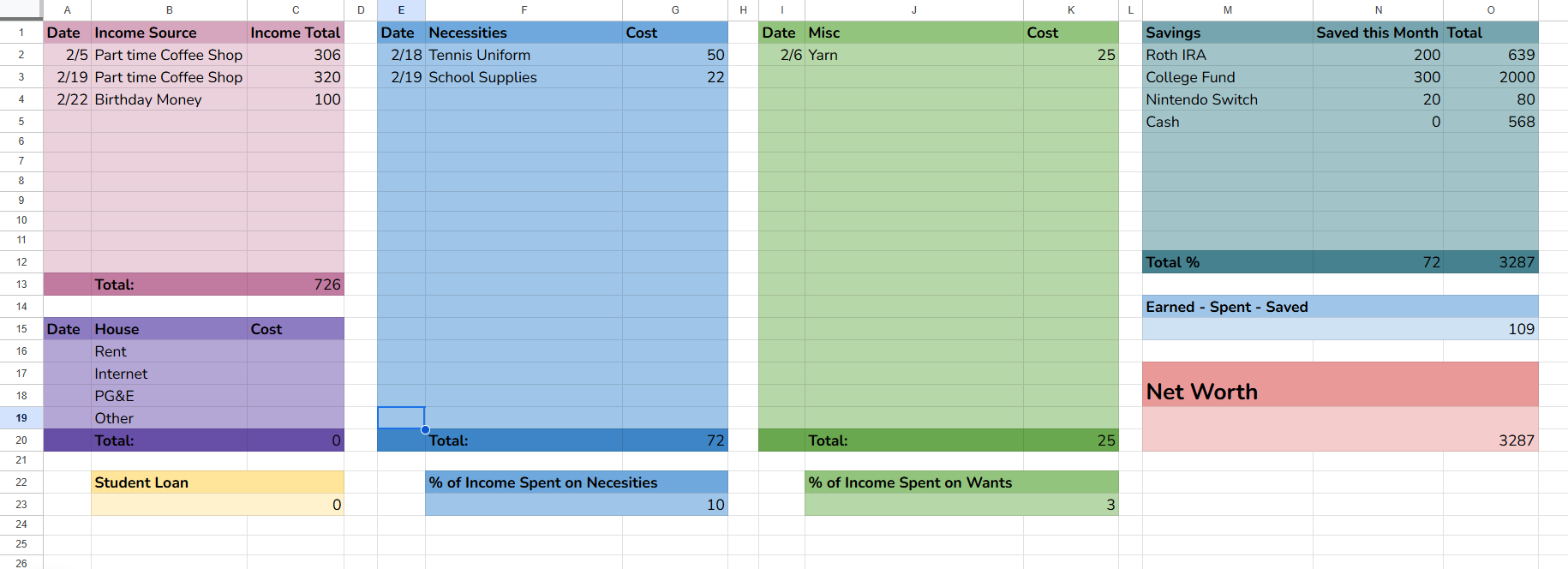
Figure 1. A sample finance tracker spreadsheet created by the ChatGPT AI Agent.
- Check that:
- If something doesn’t match your needs, tell the agent exactly what to change. For example:
- “Add a category for payment method (cash, card, Venmo).”
- “Change the chart to show total spending per month instead of per category.”
- “Add a running total for this quarter.”
- “Include a column for whether the expense is a ‘want’ or a ‘need.’”
- Once you’re happy with the layout, test the data entry process. Before you start, ensure you’re still in the same chat where you created the spreadsheet, not a new one:
- Upload an image of the receipt or bank statement you would like to use in the ChatGPT prompt. If you received the receipt via email, you can also take a screenshot of it and upload it to ChatGPT. You could either drag and drop the image file right into the chatbox or click on the “+” button and select “Add photos & files.”
- If you do not have a physical (or digital) receipt, you can still add the expense by describing it in a prompt–for example: "I paid $15 in cash on 10/5/2025 at a street vendor for a hot dog."
- Ask the agent to add the expense(s) to the spreadsheet.
- Verify that:
- The amount, date, and category are correct.
- The totals and charts update as expected
- Evaluate the AI agent’s ability to properly sort and categorize transactions. Consider the following:
- Did the AI agent input the correct dates and categories of the transaction?
- Do the visualizations look correct?
- Did the AI agent do the correct math?
- After you test a few expenses, you’ll likely notice things you want to change (like categories, columns, rules for auto-categorizing, or charts). To improve your agent, you may want to evaluate it in various versions until it meets your criteria. For example, your workflow may look like this:
- Enter a small test batch (for example, 5-10 expenses from receipts or bank statements).
- Evaluate your performance against the evaluation criteria (accuracy, consistency, chart updates, etc.).
- Update your prompt and/or spreadsheet setup according to your findings.
- Label the updated setup as the next Version (V1 → V2 → V3…). Remember to start a new chat when you decide to start creating a new version.
- Continue until the setup consistently meets your criteria.
- It may help to create a data table that you can use to evaluate the AI agent based on your specific criteria.
Swipe left to see moreTable 1. Example data table. You can add more rows to the table for additional expenses. You can score each criterion with Good / Average / Bad or replace it with a 1-5 scale. Version # What You Tested (examples) Criteria #1 (e.g., correct amount/date) Criteria #2 (e.g., correct category) Criteria #3 (e.g., charts update correctly) Issues Observed Prompt/Change Made V1 5 receipts + 1 bank statement screenshot Good / Average / Bad Good / Average / Bad Good / Average / Bad Dates misread on 2 items "Always extract date from the receipt header." V2 Same batch + 3 new receipts Good / Average / Bad Good / Average / Bad Good / Average / Bad "Food" category too broad "Add separate categories for Restaurants vs. Groceries." V3 Same batch + 10 new receipts Good / Average / Bad Good / Average / Bad Good / Average / Bad --- ---
/-/https/www.sciencebuddies.org/Files/21757/5/spreadsheet_example.png)
Saving Options
You have several options for saving your spreadsheet:
- Keep it in ChatGPT.
- The spreadsheet will remain available within your chat.
- You can return to the same conversation to view or update it.
- Download a local copy.
- Click the “Download” button on the spreadsheet.
- This saves a static copy to your computer.
- Note: If you later add more expenses in ChatGPT, the downloaded file will not update automatically.
- Connect Google Drive (Optional).
- You can link your Google Drive so that the updated versions of the spreadsheet are automatically saved there.
- To connect your Google Drive, click the globe icon below the chat box, select Google Drive, and follow the on-screen instructions to grant ChatGPT access to your Drive.
- Important: This allows ChatGPT to access your Google Drive to read and modify the files. Review the permissions carefully and only allow access if you are comfortable with this level of integration. As of writing this article, there isn't a specific toggle to allow access to limited files.
- You can link your Google Drive so that the updated versions of the spreadsheet are automatically saved there.

Ask an Expert
Variations
- Goal-based saving: Have the agent help you save toward specific goals, such as a new phone, prom/homecoming costs, sports/club fees, concert tickets, or a bike. The agent should create a goals table and:
- Generate a bar chart showing progress toward each goal
- Estimate the months until each goal is reached based on the current weekly/monthly contribution
- Applications and deadlines tracker (college applications, scholarships, programs, internships): Have the agent track opportunities such as college applications, scholarships, summer programs, internships, competitions, etc. with:
- Name, due date, link (optional), status (not started / in progress / submitted), result, and award amount (if any)
- Conditional formatting to highlight deadlines coming up soon (e.g., within 14 days)
Careers
If you like this project, you might enjoy exploring these related careers:
/-/https/careerdiscovery.sciencebuddies.org/Files/17070/11/pexels-photo-5716042.jpg)

/-/https/careerdiscovery.sciencebuddies.org/Files/1163/18/pexels-photo-1181472.jpg)

/-/https/img.youtube.com/vi/GqxGn-7kQZY/0.jpg)
/-/https/img.youtube.com/vi/B937Ox9JNEQ/0.jpg)
/-/https/img.youtube.com/vi/Ar78O1hl7TE/0.jpg)